Help
Three short guides, two of them with pictures of the real app, and one address to write to.
Someone is helping me
- Step 1
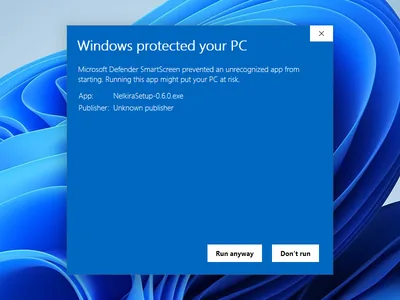
Real Nelkira 0.6.0 (test build of the release source), Windows SmartScreen on the test PC, 31 October 2026. If Windows says ‘Windows protected your PC’
Choose More info, then Run anyway.
Nelkira is not code-signed yet, so Windows asks before it runs. You can check the file against its SHA-256 on the download page.
- Step 2
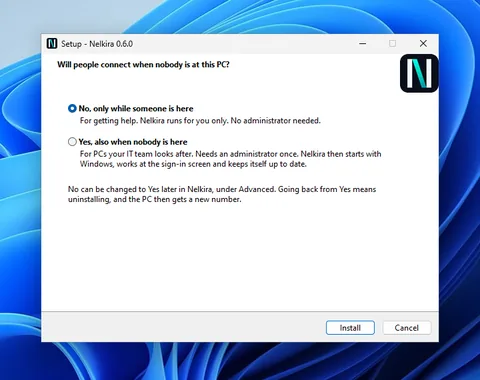
Real Nelkira 0.6.0 (test build of the release source), Setup, 31 October 2026. Setup asks one question
Setup asks ‘Will people connect when nobody is at this PC?’ Choose No unless your IT team told you Yes.
Yes needs an administrator and changes what a helper can do; the security page says what.
- Step 3
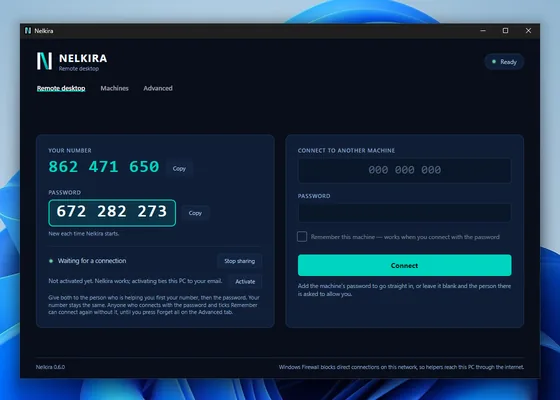
Real Nelkira 0.6.0 (test build of the release source), the main window, first open, 31 October 2026. Read out the number and password
Nelkira shows your number and a password. Read both to the person helping you.
Windows may ask whether Nelkira can use the network. Either answer works; if you choose Cancel, sessions go through the relay even on your own network.
To end the session
Press the × on the amber ‘Screen shared’ sign at the bottom right of your screen. Closing the Nelkira window does not end it: Nelkira stays on, so your helper can still reach this PC. Someone with the password or a remembered device can connect again; Stop sharing, in the Nelkira window or in the Nelkira menu by the clock, ends every session and keeps everyone out until you press Start sharing.
I’m helping someone
- Step 1
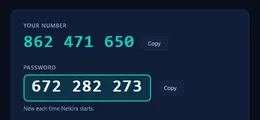
The PC shows its number and a password; the person there reads them to you.Real Nelkira 0.6.0 (test build of the release source), the main window, 31 October 2026. Ask for the number
The PC you reach shows a nine-digit number and a password. Ask the person there to read them to you; the number stays with the PC, the password changes each time Nelkira starts there unless a fixed one was set.
- Step 2
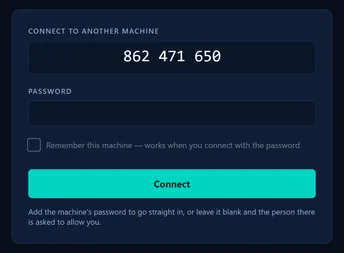
The helper types the PC's number. With no password, the person there is asked.Real Nelkira 0.6.0 (test build of the release source), the main window, 31 October 2026. Type it, then wait for Allow or type the password
In Nelkira on your PC, or in Nelkira Go on your phone. Leave the password blank and the person at the PC is asked to allow you; type the password they read you and you go straight in. Tick Remember as you do and your device can come back without it.
- Step 3
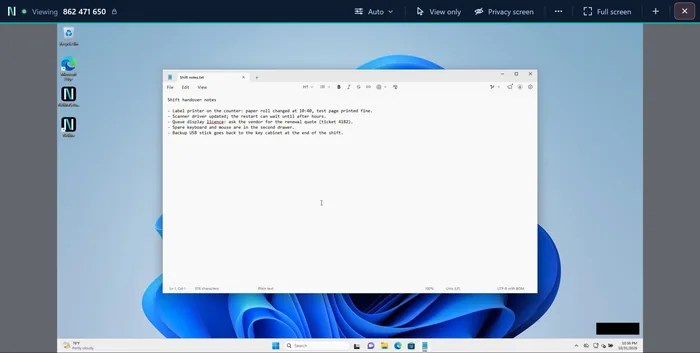
Working on their screen, in a window on yours. The black box is where their Screen shared sign sits; it is not sent.Real Nelkira 0.6.0 (test build of the release source), the session window, 31 October 2026. The session bar
View only, Privacy screen, the PC’s other screens, picture quality, full screen, + for another PC in its own tab, and End. Ctrl+Alt+Del works on PCs set up for access when nobody is there.
Said plainly: Privacy screen blocks their keyboard and mouse only with administrator rights, or on a PC set up for access when nobody is there. Using it to hide from the PC’s own user breaches the Acceptable Use Policy.
It won’t connect
- Run the connection test on both PCs. It measures the line to the relay in Mumbai, India, in under half a minute, and says which picture mode the line can carry.
- Check that Nelkira is running on the PC you want to reach and shows its number. A PC installed for use while someone is here can be reached only while someone is signed in to Windows there; from release 0.5.0 an administrator can set a PC up for access when nobody is there.
- The relay is reached on port 443, the port web browsing uses. If a browser on that PC can open nelkira.com, the relay is reachable, and nothing needs to be opened on the router.
- On the same network, a direct path needs Windows Firewall to allow Nelkira; where it refuses, the relay carries the session anyway, since both are tried at the same time.
- Wrong password? Ask for it again: it changes each time Nelkira starts on that PC unless a fixed one was set. After four wrong passwords in ten minutes the PC stops taking passwords from there for a while; leave the password blank and the person at the PC can still let you in with Allow.
- Still stuck? Write to hello@nelkira.com with the PC’s number and what the window says. Never send the password.
Contact
Write to hello@nelkira.com.
Lost my account key
We keep only a fingerprint of the key, so we cannot show it again. Write to hello@nelkira.com from the email address you registered and we will say what we can do. The PCs you installed keep working without it: the key is for signing in to My account, not for connecting.