Nelkira Go
Reach a PC from your phone, with nothing to install
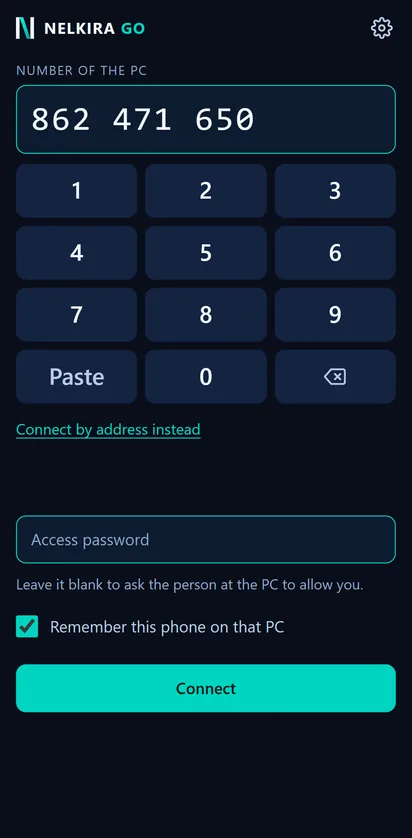
Nelkira Go runs in the phone’s browser at nelkira.com/app. Type the machine’s nine-digit number on the keypad, then add the password or wait to be allowed in. You can see and control the PC from wherever the phone has an internet connection.
How a session starts
Open it in the browser
Go to nelkira.com/app on an Android phone or an iPhone. There is nothing to download from a store, and the page keeps itself current.
Type the nine digits
The keypad takes the number shown in the Nelkira window on the PC. The same nine digits work from a PC and from a phone.
Password, or wait to be allowed
Type the machine’s access password and you go straight in. Leave it blank and the person at the PC is asked to allow you, exactly as from a PC. With no answer in 60 seconds, the connection is turned away.
See and control
The PC’s screen is on your phone, and you control it from there. The person at the PC sees an amber ‘Screen shared’ pill for as long as you are connected, except on Windows’ lock, sign-in, Ctrl+Alt+Del and administrator-prompt screens.
Put it on the home screen
Android
Open nelkira.com/app in Chrome and tap Install. From then on it opens from its own icon, like any other app.
iPhone
Open it in Safari, tap Share, then Add to Home Screen. This needs iOS 18.4 or newer.
It keeps itself current
There is no update to download and no version to check. Nelkira Go runs in the browser and picks up a new build on its own.
Always through a relay, so nothing to open on the PC
Nelkira Go always connects through a relay. The PC needs no public address and no forwarded port; it only ever connects outward, to a relay on port 443. That is the port browsers use for every https page, so it works wherever a browser does.
Sign in inside Nelkira Go once. That registers the phone to your account, and the relay address is handed to it. The phone then appears under My account alongside your PCs.
The relay carries encrypted bytes it holds no key for. The two machines agree their keys with each other, and that holds against relays we operate too. Two limits: a connection let in by clicking Allow, with no password typed, is encrypted but not proof against an active attacker in the relay path, and nor is a password sign-in from a phone or PC older than release 0.4.0 (from 0.4.0 the password is proved, not sent): an older viewer still sends the password to whichever machine answers the number, and a 0.4.0 viewer asks for Allow instead of sending it to an older PC. The detail is in the security overview and in the article on remote desktop without port forwarding.
Remember this phone
Tick ‘Remember this phone on that PC’ and you are not asked for the password next time. From release 0.4.1 that holds after the PC’s password has changed too (a PC makes a new one each time Nelkira starts, unless its owner set a fixed one), but not while someone at the PC has paused sharing with Stop sharing, which from release 0.5.0 lasts across restarts and updates until someone there presses Start sharing. What the PC keeps is not the password. It is a fingerprint (hash) of a random token issued to the phone and the value the PC checks the phone’s proof against, never the token itself. Forgetting remembered devices on the PC (all at once, from the Advanced tab) invalidates the token.
The person at the PC keeps their say. They can end any session, and they can forget every remembered device, phones included. Ending a session does not stop a remembered phone connecting again. From release 0.5.0, Stop sharing keeps everyone out, remembered phones included, until someone at the PC presses Start sharing, also across restarts and updates.
What a phone does not do
A phone connects out only. It is never the machine being accessed, so nobody can connect to your phone with Nelkira Go. The machine you reach must run the Windows app, which is free from the download page. Linux and macOS versions are to follow.
Everything on this page is the free product: no device limit, no session timer, no card.Nelkira Go is browser-based, so there is no store listing to find and no store account to make.
Three questions
Do I need to download an app?
No. Nelkira Go is a web app at nelkira.com/app. Adding it to the home screen is optional, and gives you an icon to open it from.
Which phones work?
Android with Chrome, and iPhone with Safari. Add to Home Screen on iPhone needs iOS 18.4 or newer.
Does it cost anything?
No. Every feature, every device and every session is free, with no card to enter. Personal use stays free even after paid plans for organisations arrive in 2028.